
Step into the wild

Placeholder

Ready for an adventure? Take a dive into my world of photography from exotic locations around the globe – from places like Zambia, Morocco, and more! All photos shot on the Canon EOS 5D. Feel free to reach out and connect with me!

Post Time

Ready for an adventure? Take a dive into my world of photography from exotic locations around the globe – from places like Zambia, Morocco, and more! All photos shot on the Canon EOS 5D. Feel free to reach out and connect with me!
Luckily for you, Solidworks CAM and CAMWorks comes with a huge archive full of industry standard materials and the ability to add new materials that aren’t listed. This can all be done in a few clicks within the Technology Database. Let’s get into how we can add a new material from the archive!
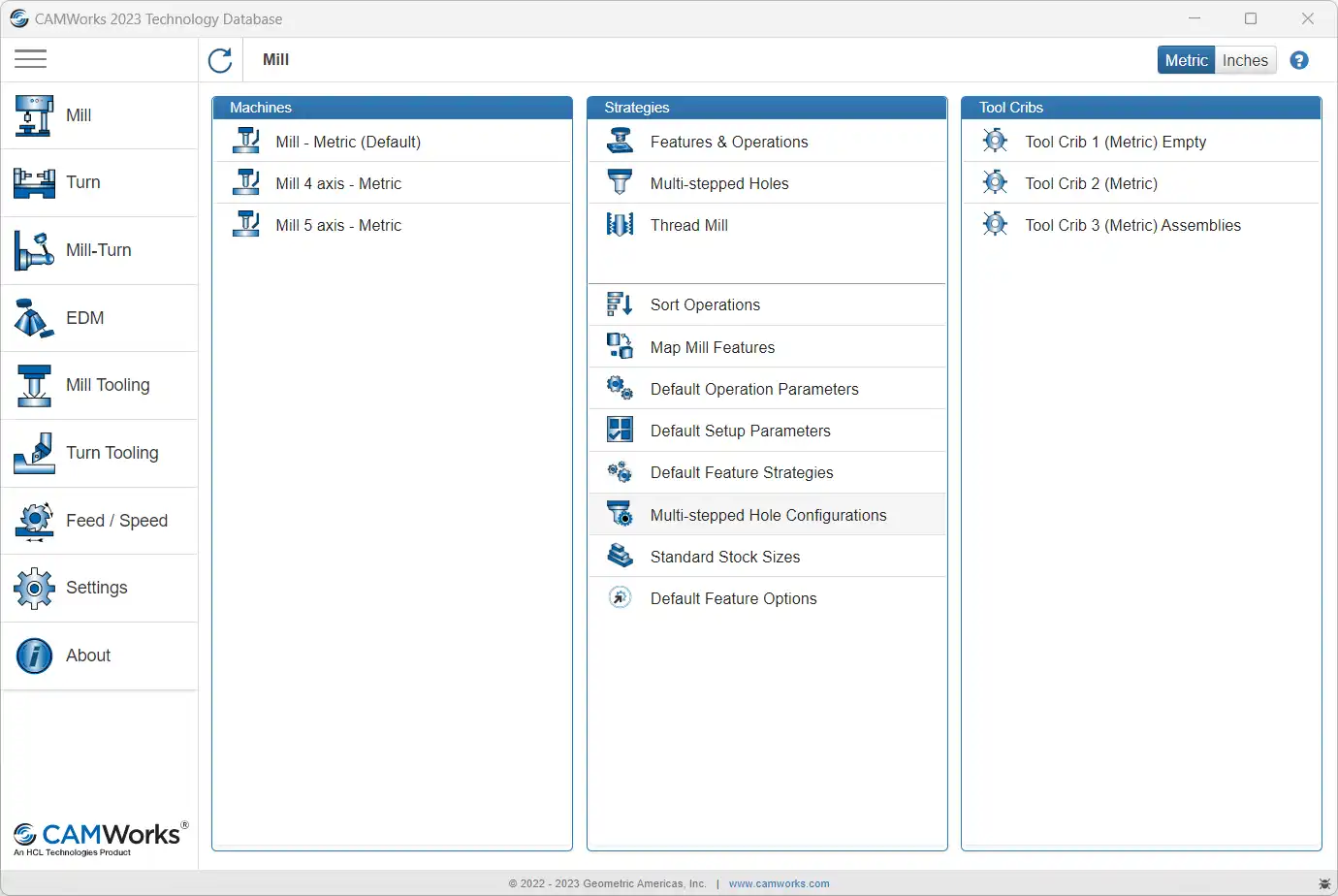
  1. From Solidworks, or from your program list, run the Technology Database. Description of the image
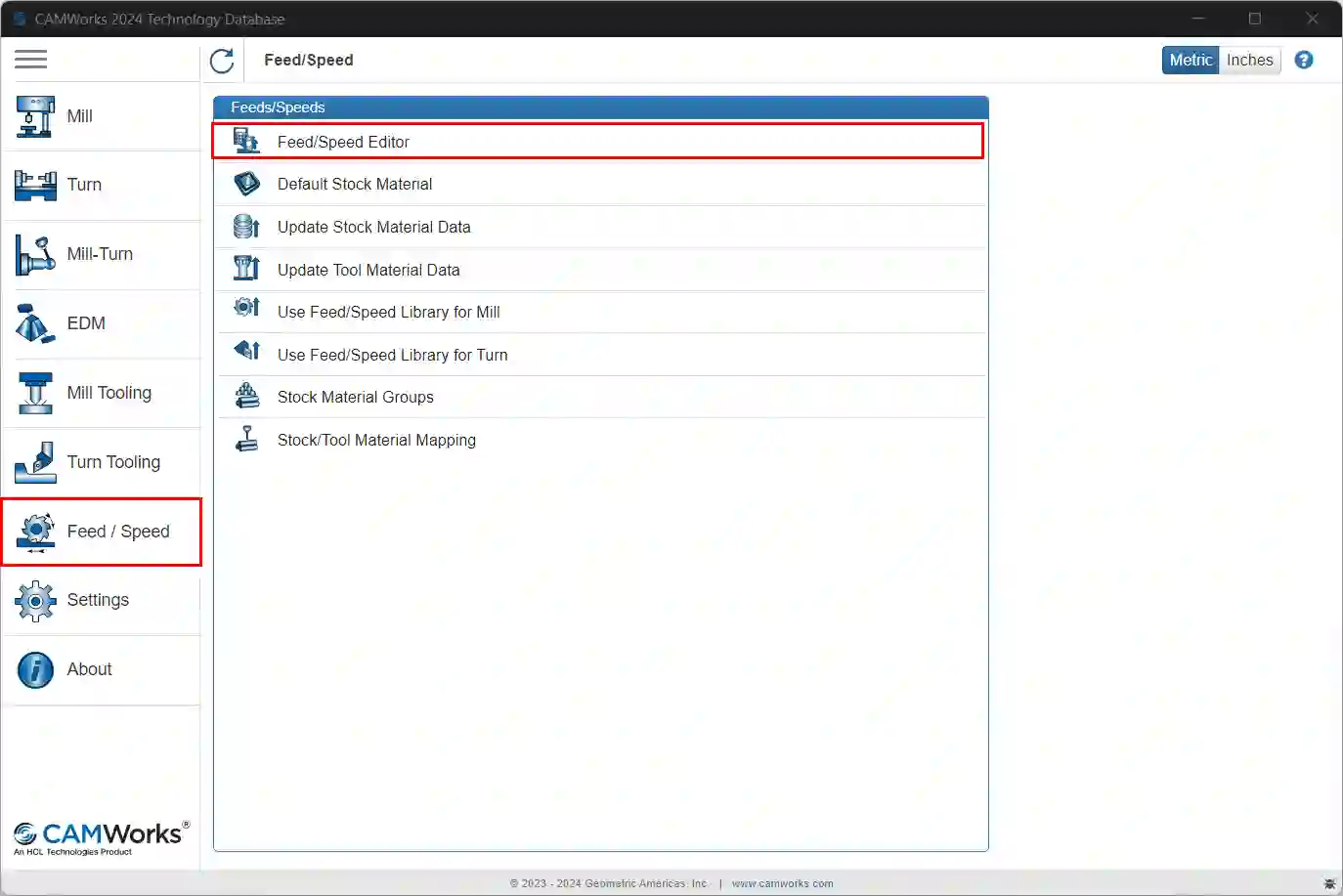
  2. Open the Feed / Speed tab and open the Feed/Speed Editor. Description of the image
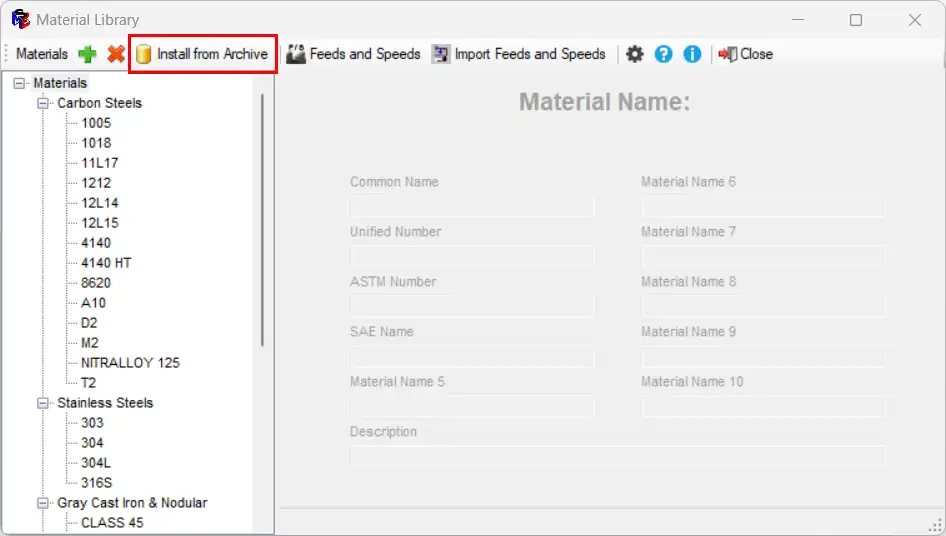
  3. In the Feed/Speed Editor, click Install from Archive.Description of the image
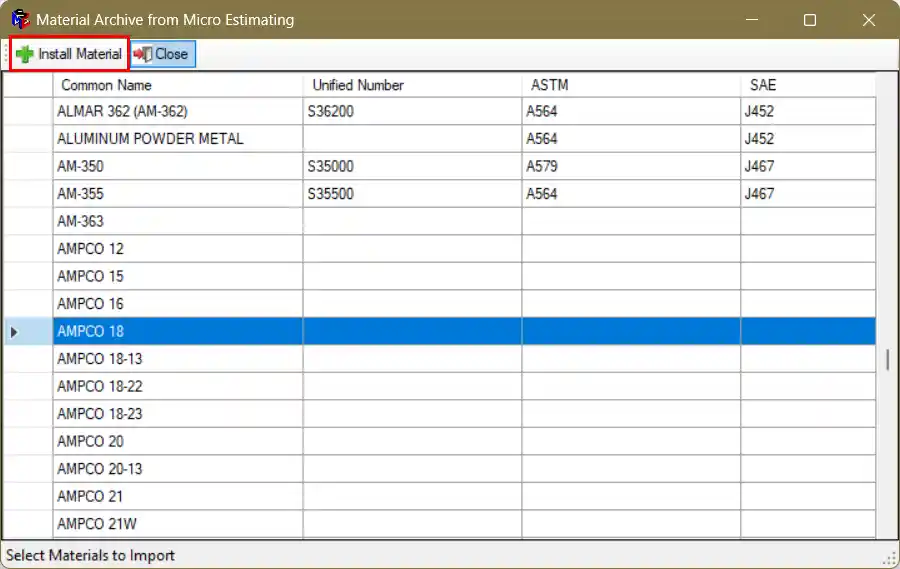
  4. Scroll through the extensive material archive, select your desired material, and click Install Material. Description of the image
  5. Select Yes to import the material. It has then been successfully imported. Description of the image
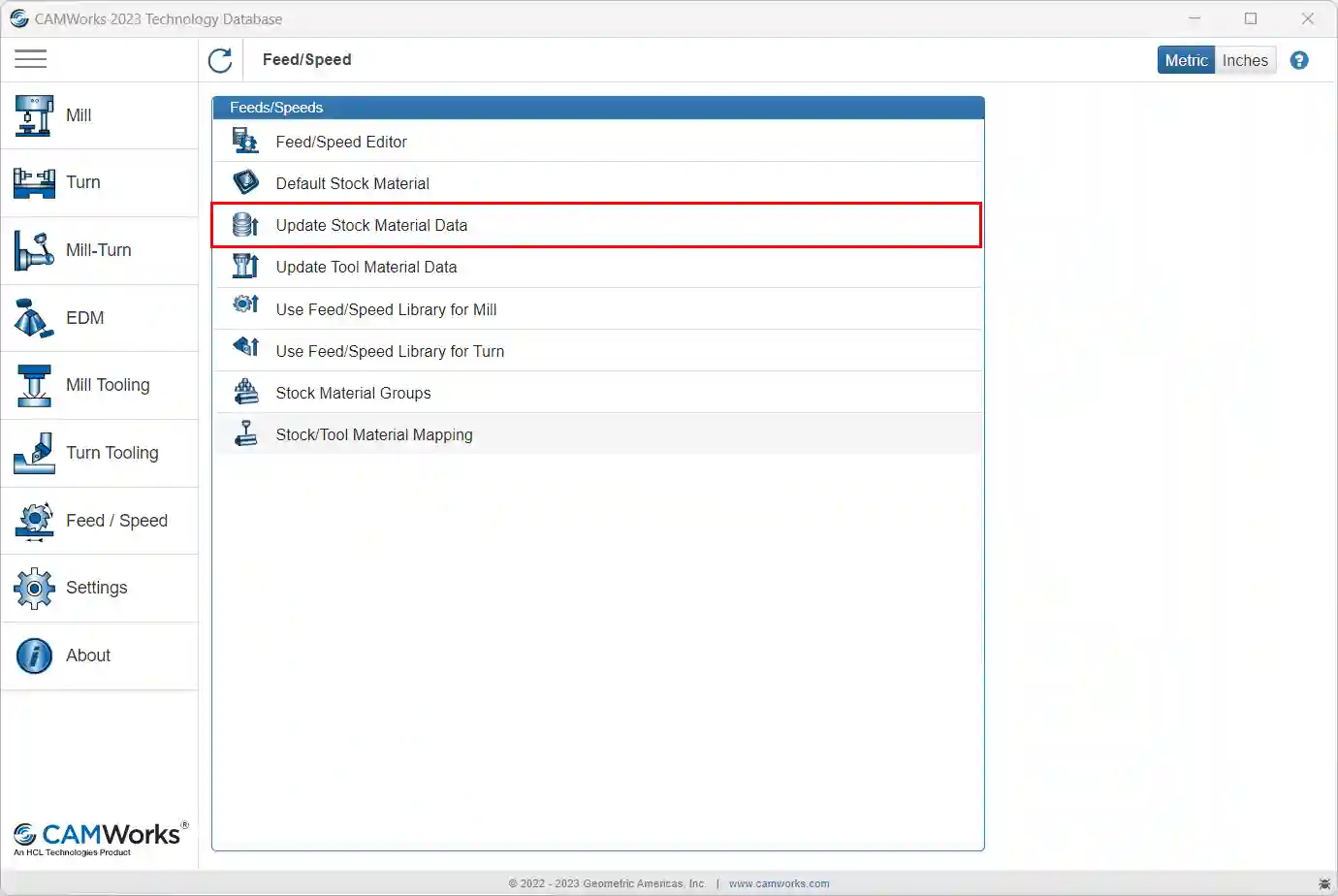
  6. The last step is to Update Stock Material Data. It will load for a period of time. When it is done loading, the material will now be accessible as a stock material! Description of the image
Thank you for reading, we hope this helps you in your CAM programming! 💻😊

TRENDING POSTS