Step into the wild

Placeholder

Ready for an adventure? Take a dive into my world of photography from exotic locations around the globe – from places like Zambia, Morocco, and more! All photos shot on the Canon EOS 5D. Feel free to reach out and connect with me!

Post Time

Ready for an adventure? Take a dive into my world of photography from exotic locations around the globe – from places like Zambia, Morocco, and more! All photos shot on the Canon EOS 5D. Feel free to reach out and connect with me!

Manually changing material to each part/component in a large assembly can be frustrating when there are thousands of parts involved. However, SOLIDWORKS has a pretty good advance selection tool which can help user to change material to all parts in one click.


Step 1: Create an Advance Select to Filter out all parts in SW assembly

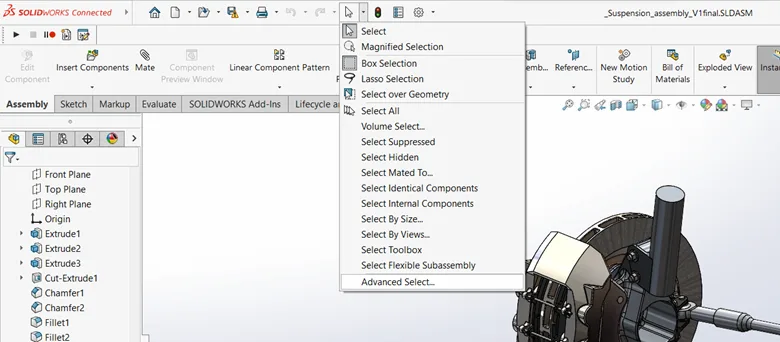
From the dropdown menu besides mouse “Select” option in top bar, Click on Advanced Select option.


Step 2: Create a new rule to select all parts in assembly

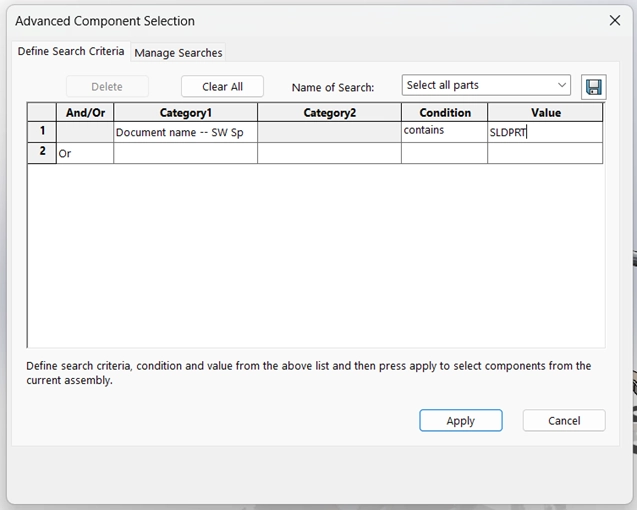
Add a new rule to select all parts by selecting “Category1” to “Document name –SW Specified”. Set a Condition to “contains”. Type out “SLDPRT”. Add a name to your command under “Name of Search” and hit Save icon to save this command for future reference. You can then click on Apply to perform the command. Please note: If you forgot to save the command follow the same step 2 and save before clicking on Apply.


Step 3: Change material to all parts

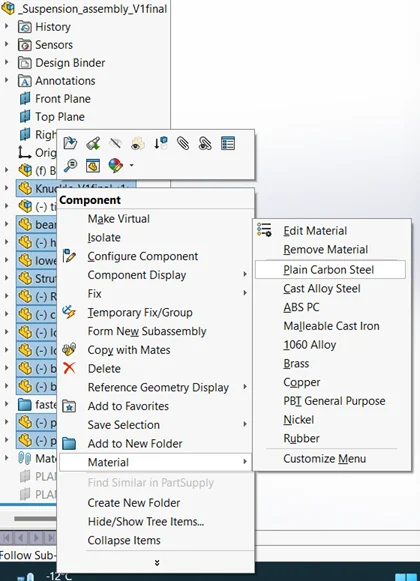
Once all parts are selected, right click on any selected part and go to Material > Select Material.

By this method, you should be able to bulk change material to all parts/components in SOLIDWORKS assembly.


Step 4 (Optional): Repeat command

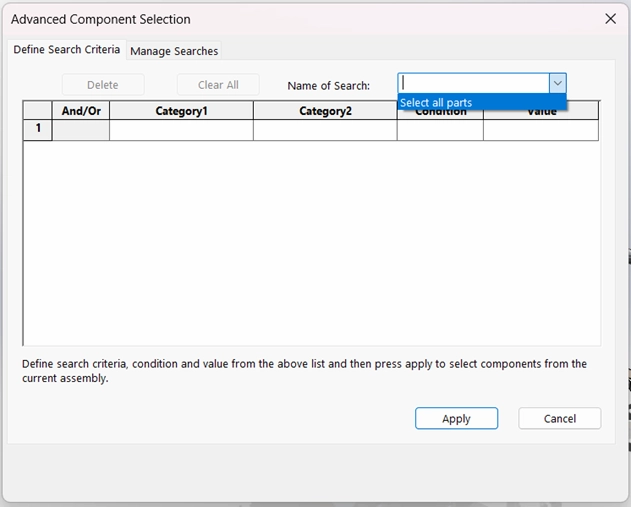
If you would like to use the command again, simply go to Advanced Select option again and choose saved command from dropdown menu besides “Name of Search” and hit Apply.

Not only you can bulk change materials but you can use this command to add/change appearances, delete components or make then fix/flexible.