Step into the wild

Placeholder

Ready for an adventure? Take a dive into my world of photography from exotic locations around the globe – from places like Zambia, Morocco, and more! All photos shot on the Canon EOS 5D. Feel free to reach out and connect with me!

Post Time

Ready for an adventure? Take a dive into my world of photography from exotic locations around the globe – from places like Zambia, Morocco, and more! All photos shot on the Canon EOS 5D. Feel free to reach out and connect with me!

Why 3DEXPERIENCE?

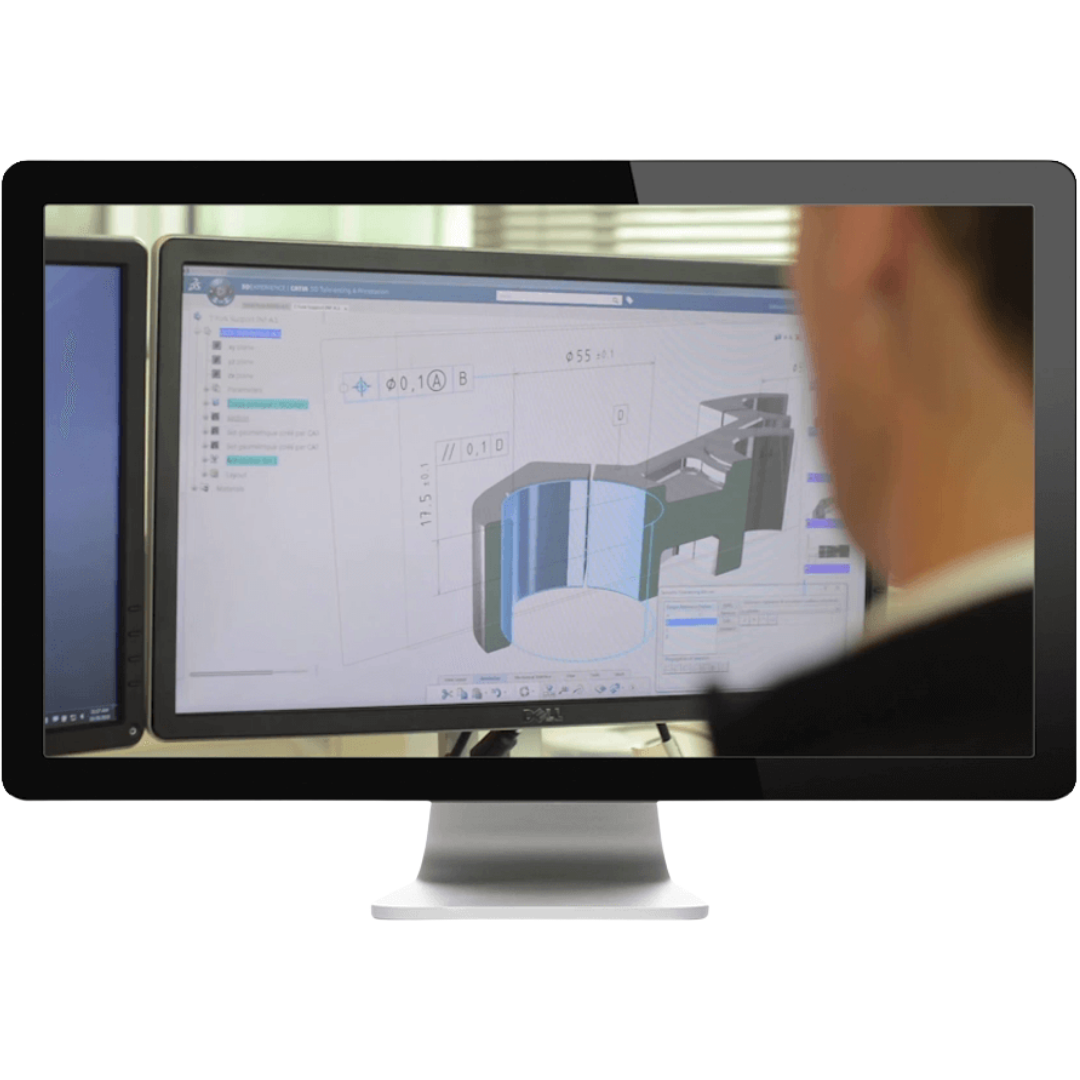
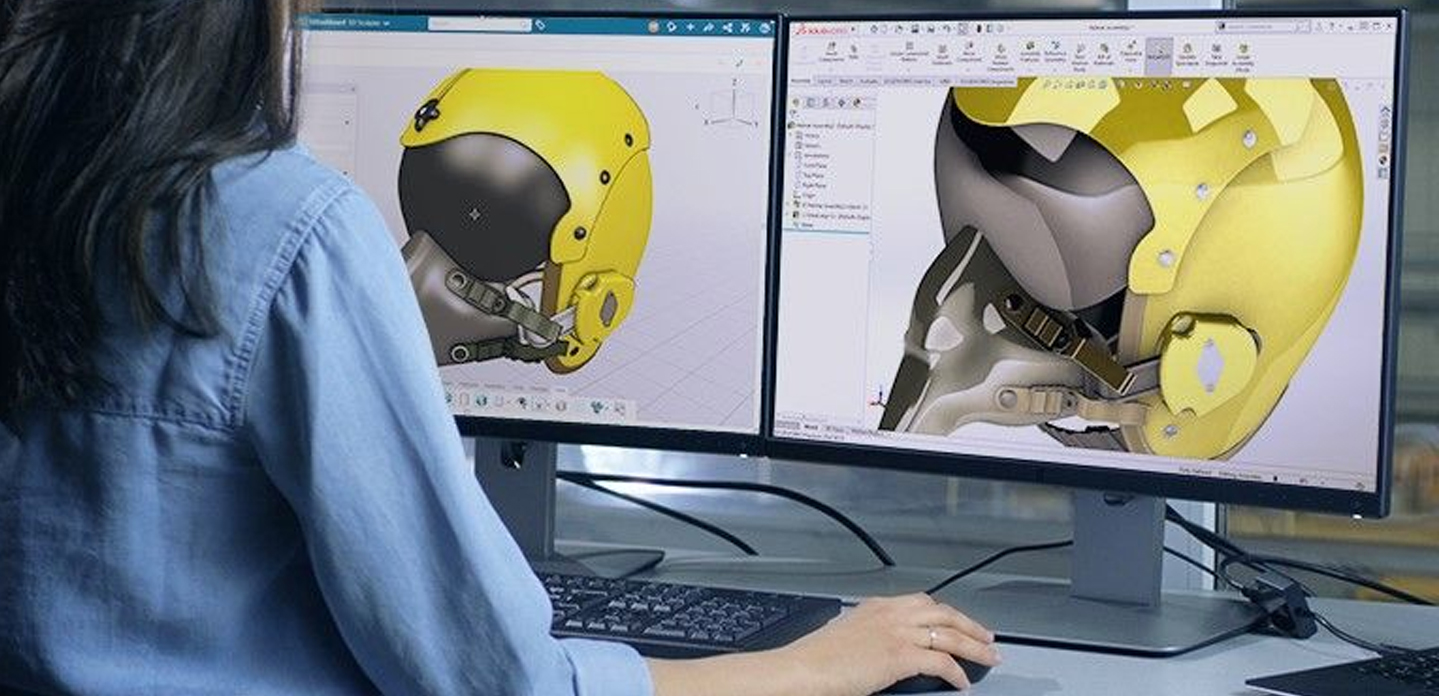
The 3DEXPERIENCE Platform converts all Dassault files to a common file type, making them compatible across various solutions. Previously, you needed a SolidWorks license to open SolidWorks files and a CATIA license to open CATIA files. Now, with a 3DEXPERIENCE license, you can open these file types effortlessly. Plus, all new seats of SolidWorks come with cloud services, giving you the ability to open CATIA files.

Step-by-Step Guide to Opening CATIA Files

  1. Log into the 3DEXPERIENCE Platform:
      Open your browser and navigate to the 3DEXPERIENCE login page.
      Enter your credentials and click “Sign In.”
  2. Access the 3DEXPERIENCE Dashboard
    • Once logged in, you will be directed to your personalized dashboard.
      Here, you can access various apps and tools available on the platform.
  3. Upload your CATIA file
    • Click on the “Add” button or drag and drop your CATIA file into the designated area on the dashboard.
      The platform will automatically convert the file to the common file type used by 3DEXPERIENCE.
  4. Open the file with the appropriate app
    • Navigate to the app that supports the type of work you want to do with the CATIA file.
      Click on the file to open it within the app. The file should now be fully accessible and editable.
  5. Save and share your work
    • After making your changes, save the file within the 3DEXPERIENCE Platform.
      You can also share the file with colleagues directly through the platform, ensuring everyone ahs access to the latest version.

Want to Learn More?

For a detailed walkthrough, check out this comprehensive tutorial and start opening CATIA files with ease today!

For more insights, visit the 3DEXPERIENCE FAQ now

TRENDING POSTS